Registration & Login
Overview
shallowseek uses email-based registration. Visit https://api.shallowseek.top to register an account, then log in to obtain an API Key and start using AI services.
Upon successful registration, the system automatically creates an initial API Key (starting with sk-) for you. You can start using the service after topping up.
Email Registration
Email registration is the most basic way to create an account. Here are the detailed steps:
-
Visit the Registration Page
Open https://api.shallowseek.top in your browser and click the "Register" button to enter the registration page.
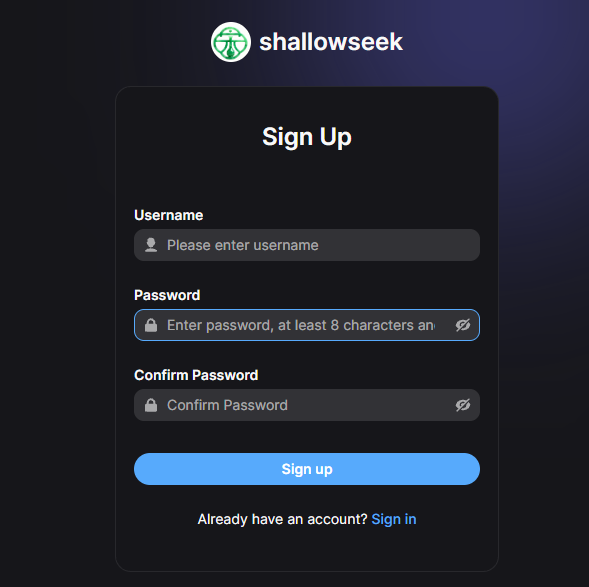
Registration page — fill in username, password, and other information
-
Fill in Registration Information
Enter your username (login account) and password. If email verification is required, you also need to provide your email address and verification code.
-
Email Verification (if required)
Click "Send Verification Code" — the system will send a code to your email. Enter the verification code within the validity period to complete verification.
-
Complete Registration and Log In
After submitting the registration form, the system automatically creates your account. You can then log in using the username and password you just set.
Account Login
After registration, use your account credentials to log in to the platform:
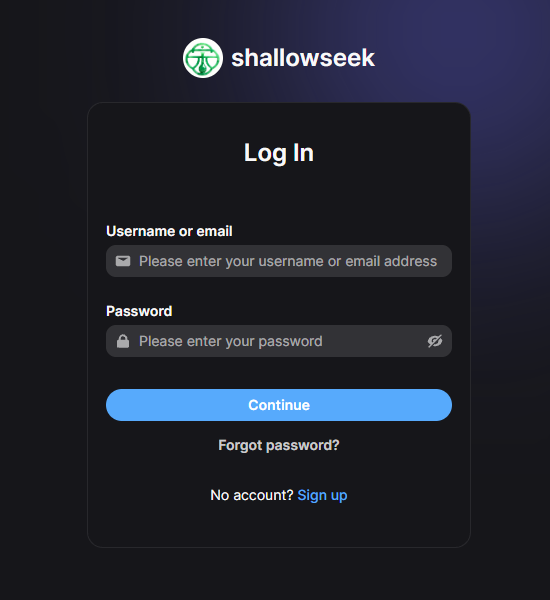
Login page — enter your username and password
- Go to Login Page — Click the "Login" button on the homepage
- Enter Credentials — Enter your username and password
- Complete Login — Click the login button to enter the console
If you have 2FA (Two-Factor Authentication) enabled, you will be prompted for a 2FA code after login. Please ensure your authenticator app's time is synced correctly.
Two-Factor Authentication (2FA)
To protect your account security, we recommend enabling two-factor authentication:
- After logging in, go to "2FA Settings" in your account center
- Scan the QR code using Google Authenticator or another TOTP app
- Enter the verification code shown in the app to complete binding
- Safely store the backup recovery codes provided by the system (used to recover access if you lose your device)
Please store the backup recovery codes in a safe place. If you lose your device and do not have the recovery codes, you will be unable to recover access to your account.
Password Reset
If you forget your password:
- Click "Forgot Password" on the login page
- Enter your registered email and click to send a verification code
- Check your email for the password reset link or verification code
- Set a new password and log in again
Account Security Recommendations
- Use a strong password — Include uppercase and lowercase letters, numbers, and special characters
- Enable 2FA — Two-factor authentication is strongly recommended
- Bind multiple login methods — Link multiple third-party accounts as backup login methods
- Do not share your account password — Your account is for personal use only
- Regularly check API Keys — Periodically review Key usage and rotate them if anomalies are found